TL;DR
Going headless (Astro front end, WordPress/WooCommerce as the CMS) does not hide WordPress. The
backend still exposes wp-admin, wp-login.php, xmlrpc.php, the full REST API and its origin IP
to the whole internet, which leaves room for brute force, plugin exploits and user enumeration.
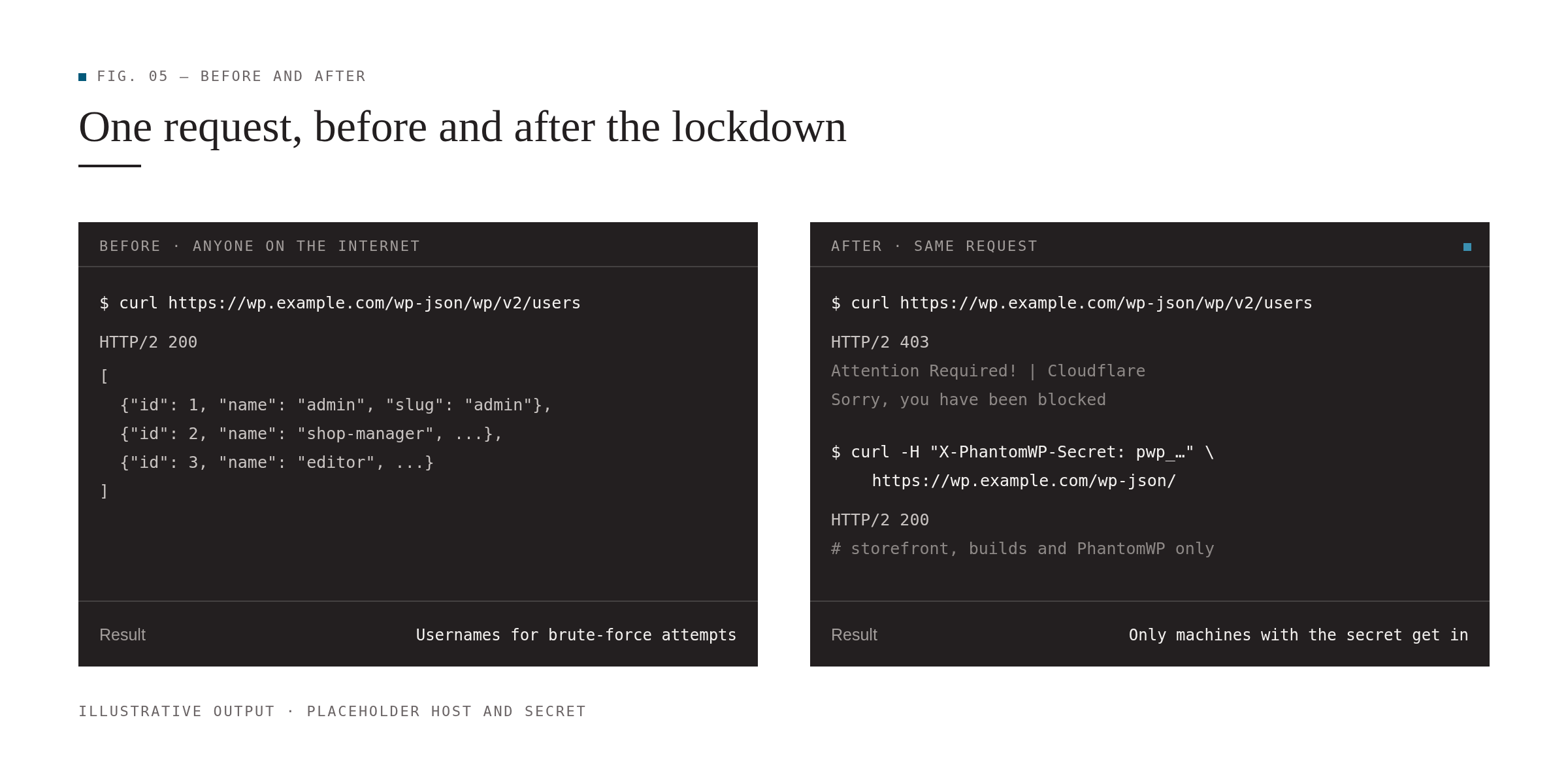
The setup that worked for us is a hybrid:
| Who | How they get in | Enforced by |
|---|---|---|
| People (admins, editors), from anywhere | Email one-time code | Cloudflare Zero Trust (Access) |
| Machines (storefront servers, builds, PhantomWP tooling) | Shared secret header on the REST API | Cloudflare WAF custom rule |
| Storefront requests to non-REST pages | Cloudflare Access service token | Cloudflare Access |
| Anyone going around Cloudflare | n/a: refused | nginx allow-list of Cloudflare IP ranges on the origin |
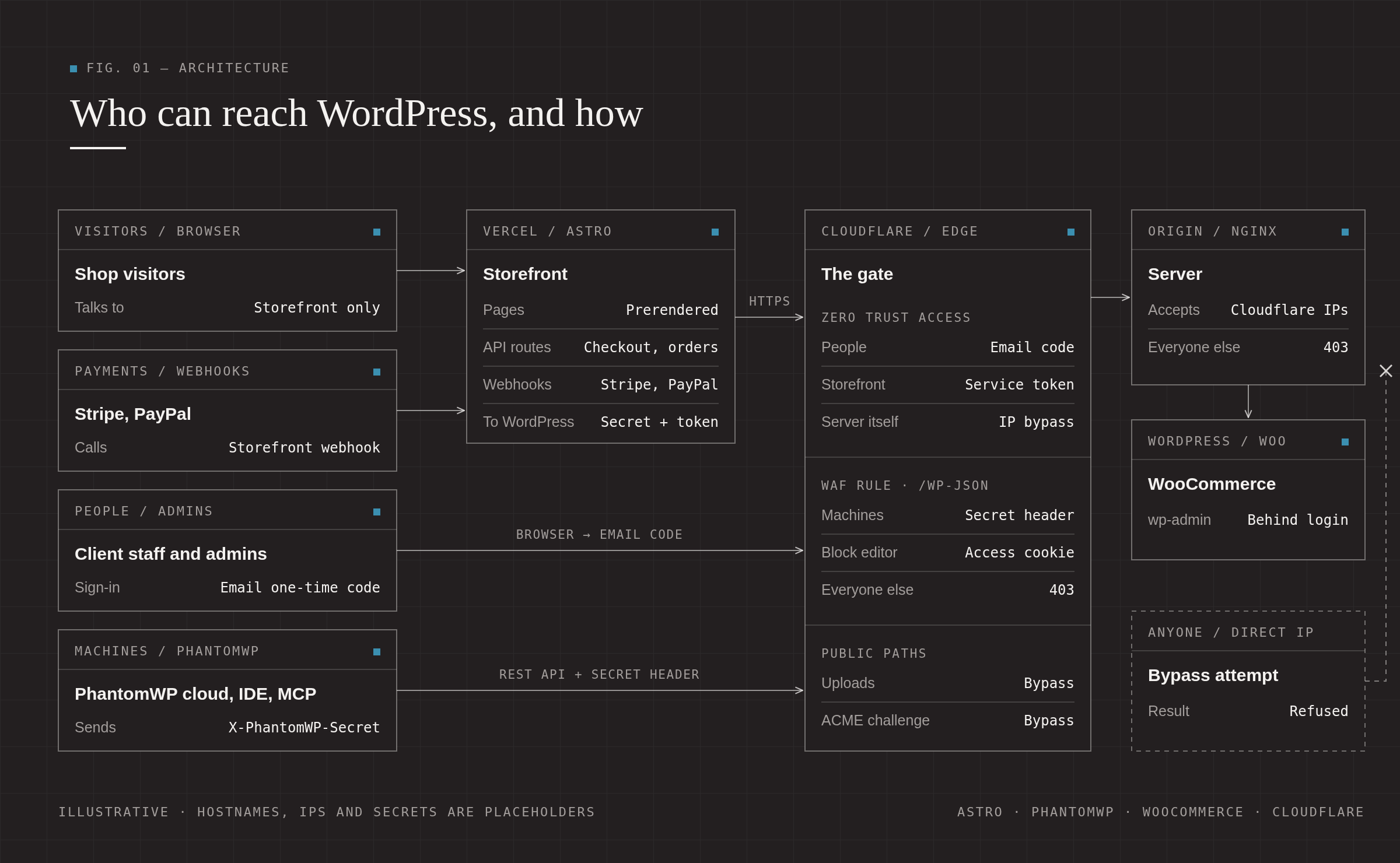
Rolling it out cost us three checkout outages and one multi-site outage. The “Mistakes we made” section is probably the most valuable part of this post.
Background: why we didn’t just follow PhantomWP’s own guide
PhantomWP has its own WordPress security guide, and it’s a good, simple model:
- Block every request to WordPress that lacks the
X-PhantomWP-Secretheader, using a Cloudflare Worker, an nginx rule or.htaccess. - PhantomWP already sends that header on every request: from the editor, from builds and from server-rendered pages.
- To reach
wp-adminyourself, install a browser extension (“Header Editor”) that adds the same secret header to your requests.
If you’re a solo developer and the only person who ever opens wp-admin, that’s probably enough.
It didn’t fit our project, because WordPress isn’t only used by us:
- The client and their staff log into wp-admin every day to update products, prices, stock, orders and translations. Asking non-technical shop staff to install a header-modifying browser extension (on every browser and device, including phones) is a support nightmare.
- Every admin’s browser would hold the master key. The same secret authenticates the storefront,
the builds and PhantomWP’s tooling. One lost laptop, a compromised extension, or an employee
leaving means rotating the secret everywhere: the plugin, Vercel,
.env, every extension, and every edge rule. - There’s no per-person access and no audit trail. You can’t revoke one person, and you can’t see who logged in when.
- People travel. IP allow-lists don’t work for a team that logs in from hotels and phones.
So we kept PhantomWP’s idea for what it’s great at, machines (a secret header on the REST API, enforced at Cloudflare), and put people behind Cloudflare Zero Trust, with a personal email login that can be revoked per address.
1. The setup we’re protecting
- Storefront: Astro, deployed on Vercel. Product, category and home pages are prerendered at build time; cart, checkout and order APIs run as serverless functions.
- CMS / commerce: WordPress + WooCommerce (+ WPML, Gravity Forms, Meta Box) on a VPS managed with SpinupWP (nginx).
- Glue: PhantomWP and its PhantomWP Connect plugin. Every request from the project to WordPress carries an
X-PhantomWP-Secretheader. - Payments: Stripe and PayPal, handled by the storefront’s own API routes. Webhooks hit the storefront, which then updates WooCommerce.
- Images: downloaded at build time and served from the storefront (“local image mode”), so browsers never load anything from WordPress.
Key insight: in this architecture, visitors’ browsers never need to reach WordPress. Only servers do, plus your admins. That’s what makes a strict lockdown possible.
2. Step zero: map every connection (don’t skip this)
Before blocking anything, list everything that talks to WordPress. Our list:
Outbound from the storefront (server-side):
- Build-time catalog fetches (WooCommerce Store API,
/wp-json/wc/store/v1/...) - Serverless API routes: checkout config, tax/shipping estimates, stock checks, coupons, order creation and lookup, reviews
- Gravity Forms submissions (
/wp-json/gf/v2/...) - A form proxy that loads a WooCommerce page as HTML (not REST)
- A fallback that fetches a rendered WordPress page’s HTML for legal pages
PhantomWP tooling:
- The IDE and dev server (runs locally in a container)
- The MCP server used by AI coding agents (a separate process)
- PhantomWP’s cloud (AI scaffolding, writes signed with
X-PhantomWP-Signature)
Inbound to WordPress from third parties:
- Payment webhooks: ours go to the storefront, but check your Stripe dashboard for any endpoint pointing at WordPress
- WordPress calling itself (WP-Cron, Action Scheduler, Site Health), which loops back through Cloudflare and often over IPv6
- Let’s Encrypt HTTP validation (
/.well-known/acme-challenge/) - Jetpack / WordPress.com, WPML’s translation service, WooCommerce.com
- Images embedded in WooCommerce emails (
/wp-content/uploads/) - Your server panel (SpinupWP connects over SSH from IPs it doesn’t publish)
Quick audit commands:
# Every server-side call to WordPress in the codebase
grep -rnE "fetch\(|WP_API_URL|wc/store|gf/v2|/wp-json" src

# Does the live site make browsers load anything from WordPress?
curl -s https://shop.example.com/ | grep -o "wp.example.com[^\"' ]*" | sort -u
We found four server-side calls that didn’t send the secret header. Each would have broken the moment we turned on a header-based rule. Fix those first, deploy, and only then start blocking.
3. Put WordPress behind Cloudflare
- Add the domain to Cloudflare (the Free plan is enough). Proxy the WordPress record (orange cloud), and keep the storefront’s records pointing to Vercel as DNS only.
- SSL/TLS → Full (strict), and turn on Always Use HTTPS.
- Leave Bot Fight Mode off. On the Free plan it can’t make exceptions, and it challenges your storefront’s server requests.
- Verify through the edge without waiting for DNS:
curl -sI --resolve wp.example.com:443:<cloudflare-edge-ip> https://wp.example.com/ | grep -iE "server|cf-ray|cf-cache-status"
# server: cloudflare / cf-ray: … / cf-cache-status: DYNAMIC
4. People: Cloudflare Zero Trust (Access)
Why not an IP allow-list? IPs change: travel, mobile, dynamic home connections. Why not a shared secret in a browser extension (PhantomWP’s documented option)? Then every admin’s browser holds the master key. Lose one laptop and you rotate the secret everywhere. With Zero Trust, access is per person: you can revoke one email address, and there’s an audit log.
Setup (Free plan, up to 50 users):
- Create a Zero Trust team (one.dash.cloudflare.com). It may ask for a card, but it costs $0. The
team name becomes your login domain (
<team>.cloudflareaccess.com), so pick something recognisable for your client. - Enable the email code login method (“One-time PIN”). This is easy to miss: a fresh Zero
Trust account has no usable login method for people without a Cloudflare account.
- Go to Integrations → Identity providers (in some dashboard versions: Settings → Authentication → Login methods) → Add new → One-time PIN → Save. There’s nothing to configure.
- Later, in each Access application, open the Authentication section. It has two tabs:
- Identity: either keep “Accept all available identity providers” or untick it and select One-time PIN only. Selecting only One-time PIN is better, because then nobody needs a Cloudflare account. Turn on “Apply instant authentication” so users land straight on the email field instead of a provider picker. Leave “Authenticate with Cloudflare One Client” off unless you deploy the WARP client.
- MFA: leave it off. The email code is the Cloudflare factor, and the WordPress password is the second one. You can switch MFA on later under Access controls → Access settings.
- Symptom if you skip this: the login page only offers a “Cloudflare” button (sign in with a Cloudflare account), and your client’s staff can’t get in.
- The codes come from
noreply@notify.cloudflare.com. Tell users to check spam the first time.
- Create a service token (non-expiring) for your storefront. Store
CF_ACCESS_CLIENT_IDandCF_ACCESS_CLIENT_SECRETas environment variables in Vercel and your local.env. - Access application “WordPress” for the whole host
wp.example.com, with policies in this order:- Service Auth: include the storefront’s service token
- Bypass: include the server’s own IPv4
/32and IPv6/64(for loopback calls) - Allow: include your admins’ emails
- Identity: One-time PIN only, Apply instant authentication on
- Access application “WP public files”, with action Bypass, Everyone, for these paths:
wp.example.com/wp-content/uploads(images in emails)wp.example.com/.well-known/acme-challenge(certificate renewal)wp.example.com/wp-json(the REST API, protected by the WAF rule in the next section)
Admins now get an email code, then the normal WordPress login: two separate factors, from anywhere.

5. Machines: secret header on the REST API (WAF)
PhantomWP sends X-PhantomWP-Secret on every request: from the editor, from builds, from
server-rendered pages and from its cloud. Its cloud and MCP tools can’t send Cloudflare service
tokens, so the REST API gets its own gate.
Security → WAF → Custom rules → “Edit expression”:
(http.host eq "wp.example.com"
 and starts_with(http.request.uri.path, "/wp-json")
 and not any(http.request.headers["x-phantomwp-secret"][*] eq "pwp_YOUR_SECRET")
 and not http.cookie contains "CF_Authorization="
 and not ip.src in {203.0.113.10 2001:db8:1234:5678::/64})
Action: Block.
- The cookie exception lets the block editor and WooCommerce admin screens work: they call
/wp-jsonfrom the browser, carrying the admin’s Access session cookie. The rule only checks that the cookie is present, not that it’s valid. Be honest about that trade-off: a forged cookie only reaches the public parts of the REST API. - The IP set covers WordPress calling itself (both address families).
?rest_route=/wp/v2/users(the REST API without the/wp-jsonprefix) still lands on the Access-protected root, so that trick doesn’t get through.
6. Storefront code: send the service token without editing generated files
Some WordPress calls live in framework-managed code (PhantomWP’s runtime), which gets overwritten on
updates. Instead of patching every call, wrap the server’s fetch once and add the Access headers
only for the WordPress origin:
// src/lib/wp-access.ts (server-only; import from src/middleware.ts and your data layer)
const ORIGIN = new URL(import.meta.env.WP_API_URL).origin;
const ID = import.meta.env.CF_ACCESS_CLIENT_ID;
const SECRET = import.meta.env.CF_ACCESS_CLIENT_SECRET;
const KEY = Symbol.for('app.cfAccessFetch');

if (typeof window === 'undefined' && ID && SECRET && !(globalThis as any)[KEY]) {
  const original = globalThis.fetch.bind(globalThis);
  globalThis.fetch = ((input: RequestInfo | URL, init?: RequestInit) => {
    const url = typeof input === 'string' ? input : input instanceof URL ? input.href : input.url;
    if (!url.startsWith(ORIGIN + '/')) return original(input, init);
    const headers = new Headers(input instanceof Request ? input.headers : undefined);
    new Headers(init?.headers).forEach((v, k) => headers.set(k, v));
    headers.set('CF-Access-Client-Id', ID);
    headers.set('CF-Access-Client-Secret', SECRET);
    return original(input, { ...init, headers });
  }) as typeof fetch;
  (globalThis as any)[KEY] = true;
}- Import it in
src/middleware.ts, which covers every SSR and API route on Vercel. Also import it at the top of the module yourgetStaticPathsuses, which covers prerendering at build time. - Test it against a local echo server before relying on it. Check string URLs,
URLobjects,Requestobjects with POST bodies andHeadersinstances, and make sure other origins stay untouched. - Bonus: the local dev server process gets the token too, so PhantomWP’s IDE tools that run inside it keep working.
7. Close the back door: lock the origin to Cloudflare
Cloudflare rules mean nothing if attackers can connect to your server’s IP directly, and IP scanners will find it. Allow only Cloudflare’s IP ranges for that one site:
# SpinupWP: /etc/nginx/sites-available/wp.example.com/server/cloudflare-only.conf
# (SpinupWP includes server/* inside the site's server block)
allow 173.245.48.0/20;
# … every range from https://www.cloudflare.com/ips-v4 and /ips-v6 …
allow 127.0.0.1;
allow ::1;
deny all;
sudo nginx -t && sudo systemctl reload nginx8. Verify everything (and keep re-verifying)
This is what should happen for each kind of request once everything is in place:
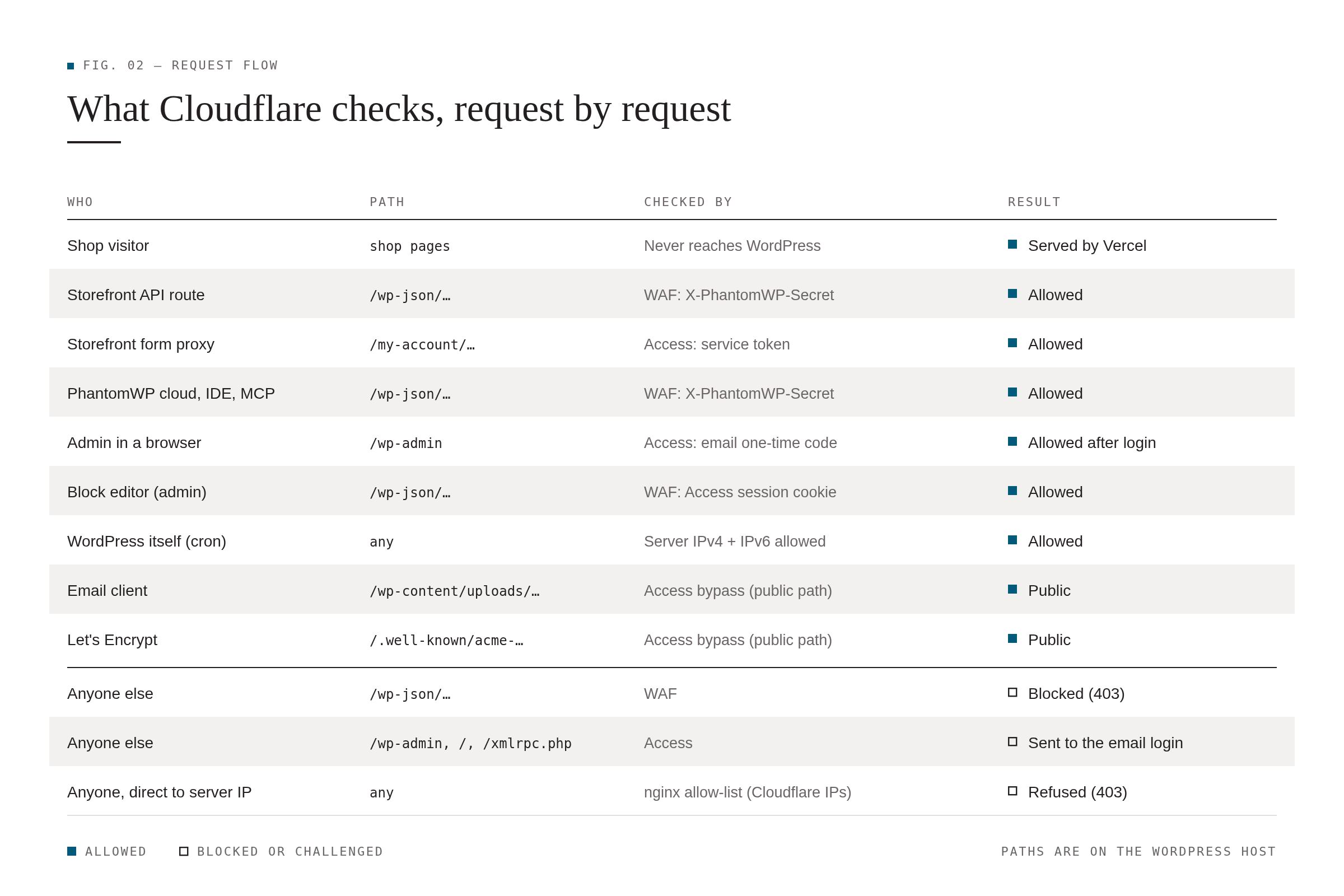
After every change, run harmless checks that exercise each connection:
S=https://shop.example.com
curl -s $S/api/checkout/config                                          # success: true
curl -s -X POST $S/api/coupons/validate -d '{"code":"fake-code"}' -H 'content-type: application/json'  # WooCommerce: "coupon does not exist"
curl -s "$S/api/orders/999999?order_key=x"                              # 404 Order not found (WooCommerce answered)
curl -s -X POST $S/api/payments/stripe/webhook -d '{}'                  # 400 Missing signature

W=https://wp.example.com
curl -s -o /dev/null -w "%{http_code}\n" $W/wp-json/                    # 403 (WAF)
curl -s -o /dev/null -w "%{http_code}\n" -H "X-PhantomWP-Secret: $SECRET" $W/wp-json/  # 200
curl -s -o /dev/null -w "%{http_code}\n" $W/wp-admin/                   # 302 → Access login
curl -s -o /dev/null -w "%{http_code}\n" --resolve wp.example.com:443:<origin-ip> $W/  # 403 (nginx)
Plus:
- An outsider test from a phone on mobile data. Your own IP may be special-cased somewhere.
- The MCP / IDE schema refresh in PhantomWP.
- wp-admin → Tools → Site Health: no loopback or REST API errors.
- A real low-value order, end to end.
Keep a live watch on checkout while you change rules. Poll /api/checkout/config every 15 s
during the change window, and have a rollback ready (rule toggle off).
9. If your checkout runs on WordPress (subscriptions, etc.)
You can’t put the whole host behind Access. Instead:
- Make Access applications per path for
wp-adminandwp-login.php(people), and keep the customer-facing paths (/checkout,/cart,/my-account,/wp-content,/wp-includes,?wc-ajax=) public. - Leave the payment gateways’ webhook endpoints on WordPress public, and restrict them by the gateway’s documented IP ranges where the provider publishes them.
- Block
xmlrpc.phpoutright, and rate-limitwp-login.phpeven behind Access. - Keep the
/wp-jsonsecret-header rule, but whitelist the Store API and other routes the WordPress front end itself needs.
10. Mistakes we made (so you don’t have to)
-
The Cloudflare visual rule builder rewrote our expression. Each condition became
http.host ne "<the whole condition as text>", which is always true, so it blocked everything, including checkout. Always paste rules into “Edit expression”.
Fig. 04: The rule builder trap. The expression we pasted versus what the visual builder saved: every condition became “hostname is not equal to a piece of text”, which is always true. -
We referenced an IP list that didn’t exist (
$admin_ips), so the rule was rejected. Use inline sets{ip1 ip2}or create the list first. -
A server-wide firewall on a shared server took down four other sites (see section 7).
-
Wrong secret = instant checkout outage. We had two copies of the secret in Vercel, both wrong. Later, the WAF rule held a wrong value. The public catalog still built fine, so nothing looked broken, but every authenticated route returned 403. Rule of thumb: if the storefront’s WordPress calls suddenly get 403, check the secret first. Cloudflare Access answers a missing or invalid token with a 302, not a 403.
-
Forgetting IPv6. WordPress calling itself goes out through Cloudflare, and over IPv6 if the server has it. Allow the server’s IPv6
/64too, not just its IPv4. -
Stale DNS after the nameserver move made the origin lock block us (and our local Docker containers). Expect 1–2 days of it.
-
Rule order matters. WAF custom rules run before Access. An old IP allow-list rule kept blocking travelling admins before they ever saw the email login.

Secret rotation checklist (do all of these together): the PhantomWP editor (Security → Access
Secret) → reinstall or re-pair the plugin if prompted → Vercel env vars → local .env → the WAF
rule → redeploy → run the checks in section 8.
11. Let your AI coding agent do the legwork (prompt included)
If you work with an AI coding agent (Claude Code, Cursor, etc.) that has your project and
PhantomWP’s MCP server connected, it can do most of the mapping, code changes and verification for
you. Dashboard clicks (Cloudflare, Vercel, your server panel) stay with you. Here’s the prompt we’d
use now, with all the lessons built in. Replace the <…> placeholders.
Goal: lock down our headless WordPress backend <wp.example.com> (WooCommerce, PhantomWP Connect)
behind Cloudflare without breaking the live Astro storefront <shop.example.com> (Vercel).

Target architecture (hybrid):
- People (the client's staff, admins): Cloudflare Zero Trust Access app on the whole WP host,
  login method One-time PIN (email code), allowed by email address.
- Machines (storefront API routes, builds, PhantomWP cloud/IDE, MCP): /wp-json is bypassed in
  Access and protected by a Cloudflare WAF rule that requires X-PhantomWP-Secret == WP_ACCESS_SECRET,
  OR the CF_Authorization cookie (admin block editor), OR the server's own IPv4/IPv6 (loopback).
- Non-REST server requests from the storefront go through Access with a service token
  (CF-Access-Client-Id/Secret), added by a server-only global fetch wrapper for the WP origin,
  so framework-managed files don't need editing.
- Origin: a per-site nginx include that allows only Cloudflare IP ranges (+localhost) and denies
  everything else. NO server-wide firewall: the server hosts other sites.

How to work:
1. Inventory first and show me the list before changing anything:
   - every server-side request to WordPress in the code: grep fetch/WP_API_URL/wc/store/gf/v2 and
     rendered-page fetches, plus PhantomWP's MCP server and IDE dev tools;
   - inbound callers: payment webhooks, Jetpack, WPML, WooCommerce.com, Let's Encrypt, email images,
     the server panel's SSH;
   - any WP URLs that browsers load on the live site;
   - every other site on the same server.
2. Make every server-side WP request send X-PhantomWP-Secret, and add the fetch wrapper. Test the
   wrapper against a local echo server. Keep each file's line endings. I'll commit; then wait until
   the deploy is live before any blocking rule exists.
3. Guide me through the dashboard steps one at a time, in this order: proxy DNS (orange) + SSL Full
   (strict) → Zero Trust team + One-time PIN identity provider + service token (env vars in Vercel
   and .env, redeploy) → WAF rule (I paste it in the TEXT expression editor, never the visual
   builder; use inline IP sets, not lists) → Access apps (public-files bypass for wp-content/uploads,
   .well-known/acme-challenge and wp-json; main app with Service Auth / Bypass server IPs / Allow
   emails) → per-site nginx include (give me short single-line commands or a file to scp; I run
   SSH myself) → delete any temporary IP rules.
4. After EVERY step, run the verification checklist and report a table:
   - storefront: /api/checkout/config, tax estimate, stock, a fake coupon, a fake order lookup,
     unsigned Stripe webhook;
   - /wp-json with the secret → 200, without it → 403; /wp-admin → 302 to the Access login;
     uploads → 200; direct to the origin IP → 403;
   - the PhantomWP MCP schema refresh works; the other sites on the server still return 200.
5. While rules change, keep a background watch polling <shop>/api/checkout/config every 15 s and
   tell me immediately if it fails, with the exact rollback (which toggle to switch off).

Known pitfalls, check these first when something breaks:
- A 403 on the storefront's WP calls = the secret doesn't match (Vercel duplicates, or the WAF rule
  value). Access answers missing or invalid tokens with 302, not 403.
- WordPress loopback calls go through Cloudflare, often over IPv6: allow the server's /64.
- After a nameserver move, resolvers stay stale for 1–2 days: local machines and Docker hit the
  origin directly (nginx 403). Use a temporary hosts entry, not a rule change.
- WAF custom rules run before Access: an IP allow-list rule blocks travelling admins.
Never: apply server-wide firewalls, use my SSH keys, print secrets in chat, or change DNS or rules
without telling me first.
Tips for working with an agent on this:
- Let it read your project’s memory or notes files first, if your tool supports them. Then the inventory and pitfalls carry over to the next site.
- Give it read access to your dashboards only through you: paste rule expressions with the secret
replaced by
XXX. - Ask it to save a runbook at the end. We did, so the next site starts from a proven checklist instead of from scratch.
Closing thought
“Headless” moves your visitors off WordPress, but not your attack surface. The fix isn’t one setting: it’s knowing every connection, giving people and machines different keys, closing the origin, and testing after every single change, while watching checkout.